
Text Replacer
Need to change a product name throughout a document, fix a recurring typo or clean up exported data? Paste your text, add one or more find-and-replace rules and see the result instantly, with the number of replacements for each rule. Options cover case sensitivity, whole words, regular expressions and keeping the original capitalisation.
- Free to use
- No sign-up
- Runs in your browser
Text replacer
Text Cleanup Toolkit
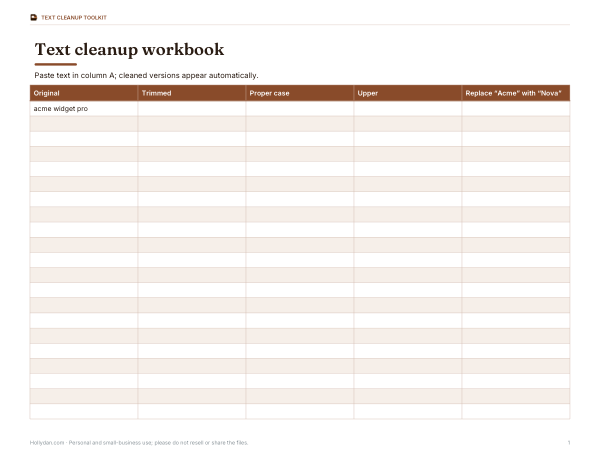
Printable regular expression cheat sheet, a find-and-replace recipe book for common cleanup jobs, and an Excel text cleanup workbook with SUBSTITUTE, TRIM and PROPER formulas.
- Regex cheat sheet (PDF)
- Recipe book (PDF)
- Cleanup workbook (XLSX)
Formats: PDF, DOCX, XLSX. Instant download after payment (link valid 72 hours, up to 5 downloads). AI-assisted: the templates were drafted with AI help and reviewed and laid out before publishing.
$3.00 USD, one-time 3 files · about $1.00 each
- Instant download
- 7-day refund
- Secure checkout by Stripe
7-day money-back guarantee. Full refund within 7 days of purchase, even after you download.
Full refund within 7 days — see the refund policy and license.
Free printables
Single sheets you can print right now, no sign-up. The full pack adds every sheet in one download plus the editable files.
What the text replacer does
It works like the find-and-replace in a word processor, but with several rules applied one after another, a live preview and a count of how many times each rule matched. That makes bulk edits quick and safe: you can see exactly what changed before copying the result back into your document, email, spreadsheet or code.
Options explained
| Option | Effect | Example |
|---|---|---|
| Case-sensitive | Only matches the exact capitalisation | “Apple” does not match “apple” |
| Whole words only | Matches only complete words | “cat” won’t change “category” |
| Regular expressions | Treats the find text as a pattern | \d{3}-\d{4} matches phone-style numbers |
| Preserve case | Copies the capitalisation style of each match | “ACME” → “NOVA”, “acme” → “nova” |
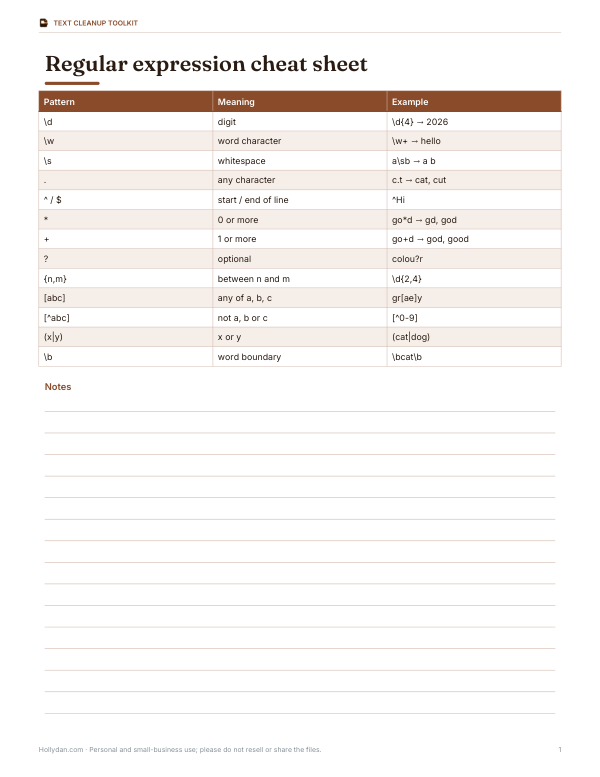
Regular expression cheat sheet
| Pattern | Matches |
|---|---|
| \d | Any digit |
| \w | Letter, digit or underscore |
| \s | Space, tab or line break |
| . | Any character except a line break |
| + | One or more of the previous item |
| * | Zero or more |
| ? | Optional (zero or one) |
| {3} | Exactly three |
| [aeiou] | Any one of these characters |
| (…) | Group — reuse in the replacement as \1, \2 |
Turn off “Regular expressions” to search for text containing symbols like . or ( literally.
How to use it
- Paste your text into the Text box.
- Add rules, one per line, in the form “find => replace”.
- Choose options: case sensitivity, whole words, regex and preserve case.
- Check the counts — if a rule shows 0, the pattern didn’t match.
- Copy or download the result, or use it as new input to apply further rules.
Worked example
The sample text mentions “Acme Widget Pro” three times in different capitalisation. With case-insensitive matching and preserve case on, the first rule changes them to “Nova Widget X”, “nova widget x” and “NOVA WIDGET X” — matching the original style — and reports 3 replacements. The second rule, a regular expression 555-\d{4}, replaces both phone numbers with “[phone removed]”.
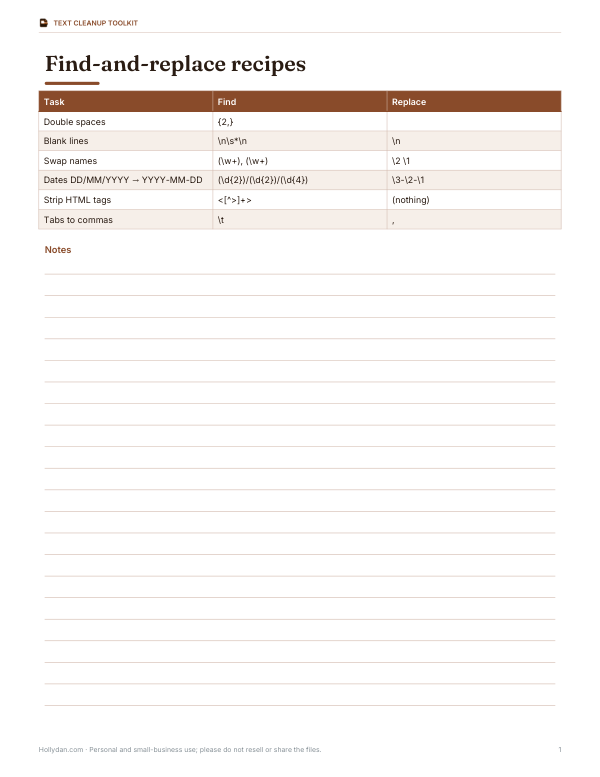
Useful recipes
| Task | Rule (regex on) |
|---|---|
| Collapse double spaces | {2,} => (a single space) |
| Remove blank lines | \n\s*\n => \n |
| Swap “Last, First” to “First Last” | (\w+), (\w+) => \2 \1 |
| Straighten curly quotes | [“”] => " |
| Remove trailing spaces | +$ => (nothing) — add m flag in code editors |
| Mask email addresses | [\w.+-]+@[\w-]+\.[\w.]+ => [email] |
Common uses
| Job | How the replacer helps |
|---|---|
| Rebranding documents | Swap old product or company names everywhere, keeping capitalisation |
| Cleaning CSV exports | Remove stray characters, change separators, trim spaces |
| Anonymising text | Mask emails, phone numbers and names before sharing |
| Preparing web copy | Replace straight quotes, fix dashes and non-breaking spaces |
| Editing code or config | Rename variables or hostnames with whole-word, case-sensitive rules |
| Translation prep | Standardise terms before sending text for translation |
How rules are applied
Rules run from top to bottom, and each rule works on the text produced by the rule above it. That means you can build multi-step clean-ups — for example, first replace tabs with commas, then collapse double commas, then trim spaces around commas. If two rules could affect the same words, put the more specific rule first. The count shown for each rule is the number of matches at the moment it ran.
Groups and back-references
With regular expressions on, parts of the pattern in parentheses are captured as groups and can be reused in the replacement as \1, \2 and so on. For example, find (\d{2})/(\d{2})/(\d{4}) and replace with \3-\2-\1 to turn 28/09/2026 into 2026-09-28. Groups are numbered by their opening parenthesis from left to right.
Special characters
| To match | With regex on | With regex off |
|---|---|---|
| A full stop | \. | . |
| Brackets ( ) | \( \) | ( ) |
| A question mark | \? | ? |
| A line break | \n | (paste the text) |
| A tab | \t | (paste the tab) |
Find and replace in other tools
| Tool | Shortcut | Regex support |
|---|---|---|
| Microsoft Word | Ctrl+H | Wildcards (its own syntax) |
| Google Docs | Ctrl+H | Yes, with “Match using regular expressions” |
| Excel / Google Sheets | Ctrl+H | Sheets supports regex; Excel uses wildcards |
| VS Code and most code editors | Ctrl+H | Yes |
| This tool | — | Yes, plus multiple rules at once |
This page is handy when you need several replacements in one pass, want to see counts before committing, or are working with text copied from different places.
Tips for safe bulk edits
- Test rules on a small sample first.
- Use whole-words mode to avoid changing parts of longer words.
- Order matters: rules run top to bottom, so a later rule sees earlier changes.
- Keep an untouched copy of the original.
- For code, turn on case-sensitive mode.
Privacy
Everything runs in your browser. Your text is never uploaded.
Frequently asked questions
How do I find and replace text online?
Paste your text, add find => replace rules and copy the result.
Can I replace several words at once?
Yes, add one rule per line; they run in order.
Does it support regular expressions?
Yes, with groups available as \1, \2 in the replacement.
What does preserve case do?
It matches the capitalisation style of each found word in the replacement.
How do I replace only whole words?
Tick Whole words only.
Why did a rule make 0 replacements?
The pattern didn’t match — check case sensitivity, whole-word mode and special characters.
Can I undo?
The original text stays in the Text box; only the result changes.
Is there a size limit?
It handles long documents comfortably; very large files may be slow on older phones.
Can I replace line breaks?
Yes, with regular expressions on, use the newline pattern in the find box.
Is my text uploaded?
No, it stays in your browser.